Pages

Showing posts with label Nexus 5X. Show all posts

Saturday, 24 October 2015

Nexus 5X teardown shows it’s quite easy to fix (and install wireless charging) [VIDEO


iFixIt is back at it with another one of their smartphone maulings known as “teardowns.” The Nexus 5Xis the hottest new thing on the block so we aren’t surprised they got their hands on it to take it to town.

The findings? It’s pretty easy to fix, scoring a 7/10 on the repairability scale (where 10 is easiest to fix). The main issue which keeps it from a near perfect score — like most smartphones these days — is that the display and touch assembly are fused together, so if it cracks then you’ll have to buy an entirely new unit when replacing it. The battery is also a bit trickier to get to than normal, but not so much that it’ll throw a wrench into your plans.

And for those who will eventually crack into this thing for one reason or another, it may even be possible to enhance its functionality. One blogger at PhoneRepair has cracked their Nexus 5X open and started testing a Qi wireless charging receiver inside the device.

He says it works and charges more slowly than normal, but wasn’t sure if this was due to the pad he was using. Fully functional or not, hacking a wireless charging receiver into the Nexus 5X is super cool and would probably be pretty convenient regardless, as the latest Nexus phones opted not to include the feature as standard. Be sure to check the process out in the video above.


Wednesday, 21 October 2015

11 things every Nexus 5X owner should do


The Nexus 5X is Google and LG’s long-overdue follow-up to the Nexus 5. Android fans loved the Nexus 5 (and still do), but it was time for an upgrade. The 5X is a worthy successor, especially with Android Marshmallow right out of the box. If you’ve never used Marshmallow before there are a few new things you’ll want to set up right away. Here are the first things you should do.

Sign into your account and use Tap & Go to restore all of your apps


One of the best recent additions to Android is one of the very first things you will see. After setting up your WiFi and signing into your Google account, you’ll be taken to the “Get your apps & data” page of the Setup Wizard. Select the “Restore from this backup” option and you’ll be presented with a list of every previously owned Android device that has been backed up to your account.

You’ll be able to see all the apps that were backed up to that device and choose the ones you wish to install on the Nexus 5X. All the apps you selected, along with your settings, will be restored to the phone. If you use the Google Now Launcher it will even restore apps to their proper place on the home screen.

Use the new USB Type-C cables, your old ones are now obsolete


The Nexus 5X comes with a shiny new USB Type-C charging cable. This is the first time we’ve seen a new connector on Android devices since the switch from mini to micro USB several years ago. There are a lot of advantages to this new standard. The cable is reversible, so it doesn’t matter how you plug it in. Charging speeds are also faster, but it’s not Quick Charge 2.0.

There are some downsides to being an early adopter to a new standard. The Nexus 5X doesn’t come with a Type-C to standard Type-A cable, which means you can’t even use your old AC adapters. You can only use the cable and adapter that comes in the box, or buy the adapter. The dozens of micro USB accessories you’ve accumulated over the years are now obsolete.

The good news is Amazon has tons of USB Type-C accessories available. Time to rebuild your stockpile.

Set up Google Now on Tap


The single most noticeable new feature of Android Marshmallow is Google Now on Tap. It’s a completely new way to interact with Google search. The Nexus 5X is one of the first devices to take advantage of this feature. Now on Tap allows Google to scan your screen and provide information based on what it finds. If your friend asks about seeing a movie in a text, Now on Tap can see the movie title and display show times.

Now on Tap is something you’ll want to use. Here’s how to set it up.
1.Open the Google app
2.Swipe in from the left and tap Settings
3.On the next page tap on Now cards
4.Make sure Now on Tap is enabled

To use Now on Tap, simply long-press the home button. You’ll see a white line trace the edge of the display, and then cards will slide up from the bottom.

Sign into your phone by scanning your finger


Another great new feature of Android Marshmallow is support for fingerprint scanners. On the back of the Nexus 5X you’ll notice a recessed circle underneath the camera lens. This is the fingerprint scanner. You can use it to quickly unlock your phone, pay for items with Android Pay, and even log into apps. It’s great. Here’s how to set it up.

1.Open Settings > Security
2.Tap on Nexus imprint > Add fingerprint
3.Create a backup PIN or password
4.Follow the on-screen instructions for scanning your finger
5.After you’ve added your first finger you can add more or be done

Set up Android Pay to make payments with your phone


As we mentioned above, one of the best uses for the fingerprint scanner is authenticating payments with Android Pay. When you use Android Pay at a terminal you’ll be able to simply scan your finger to approve the payment. It makes mobile payments a lot easier and faster. You’ll want to set up Android Pay so it’s ready to use.

1.Find Android Pay on your phone
2.Touch the (+) button in the bottom-right corner.
3.Touch Add a credit or debit card.
4.If you already have linked cards, choose one or touch Add another card.
5.Use the camera to capture your card info or enter it manually

Here’s the full list of accepted cards and banks. Look to use Android Pay anywhere you see the logo, online or in real life.

Manage permissions more easily


Why does the Twitter app need to know my location? Why does Facebook need to access my microphone? If these are questions you’ve asked you will love Android Marshmallow. Instead of seeing a long list of permissions when you install an app from the Play Store, you will be alerted when an app requests permission to do something. If Whatsapp wants to use your camera it will ask for your permission first.

That’s only half of the new features. It’s also possible to choose which permission you’d like to deny. The new App Info page in the Settings has a section for permissions. You can simply unselect which things you don’t want an app to have permission to do. Here’s how to do it.
1.Go to Settings > Apps
2.Tap on any app
3.Tap on Permissions from the App Info page
4.Unselect any permission you wish

Note: Not all apps will behave correctly if you disable certain permissions.

Choose default apps once and for all


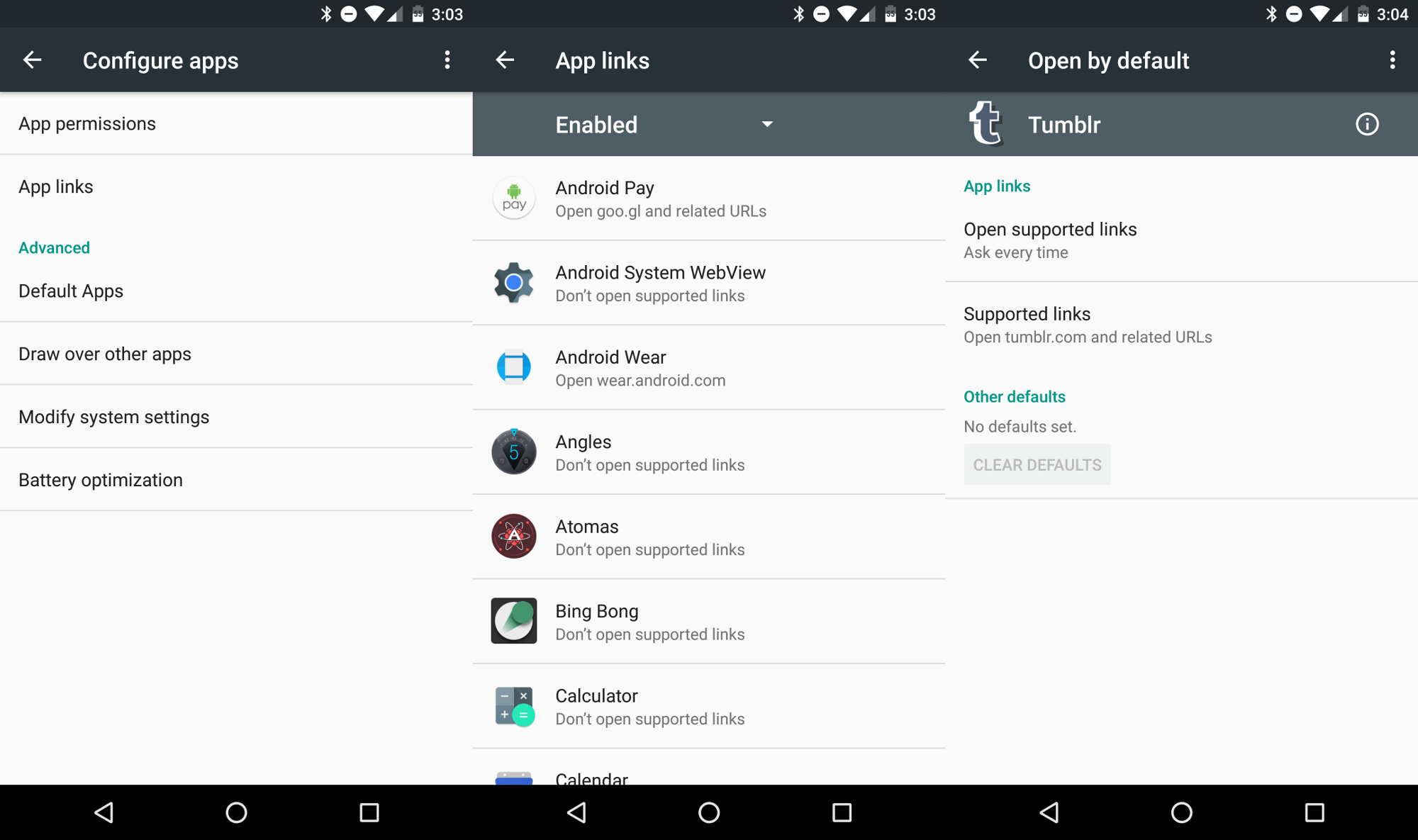
Anyone that has used Android knows how often you’re asked about the app you’d like to use to perform a task. It’s nice that we have that power, but it’s also a little annoying. A new feature called App links let you choose if you want an app to always open a certain type of link. For example, you can make Twitter links always open in the Twitter app without asking you every time. It just works.

1.Go to Settings > Apps
2.Tap the gear icon in the upper right
3.Tap on App links
4.Choose an app from the list

If the app can recognize certain links they will be listed under Supported links (the Phandroid app can open phandroid.com links). You can choose to have the supported links opened in the app, ask your permission every time, or never open in the app

Enable Google Fit to track your activity


The world of activity trackers is full of weird bracelets and dongles, but your phone is probably the best activity tracker you own. An app called Google Fit comes pre-installed on the Nexus 5X. With this app you can track your steps, activity, weight loss, and more. In order for the app to start tracking, you’ll have to first set it up.

1.Find the Google Fit app
2.Sign in with your Google account
3.Fill out your height, weight, gender, and set a personal fitness goal

That’s pretty much it. The app will run in the background and notify you when goals have been reached. All you have to do is remember to carry your phone.

Customize the Quick Toggles


Most non-Nexus devices allow you to customize the toggles found in the Quick Settings. It’s nice to be able to organize the toggles to match how you use them. Google finally added this ability in Android Marshmallow, but it can only be accessed if you know the secret method. We’ll let you in on the secret.

1.Pull down on the notification shade twice, or with two fingers
2.Long-press on the Settings gear icon in the top right for more than 5 seconds
3.Remove your finger and a toast notification will tell you System UI Tuner has been added
4.To customize the System UI go to Settings > System UI Tuner

From this screen, you’ll be able to customize the Quick Settings and choose which icons appear in the status bar. Once you successfully enable the UI Tuner you’ll notice a tiny wrench next to the gear icon in the Quick Settings. To remove the System UI Tuner from the Settings simply do the same process.

Double tap the power button to launch camera


Google and LG have talked a lot about the camera on the Nexus 5X. In the past, Nexus phones have been hampered with poor cameras in the past, but it seems they have finally caught up with everyone else in this generation. A good camera isn’t worth much if you can’t open it fast enough to take a picture. On the Nexus 5X you can double tap the power button to quickly launch the camera. Never miss a moment again!

Explore the Nexus 5X forums


If you’re already a lucky owner of the Nexus 5X, have one on the way, or plan to buy one soon, you can join the Nexus 5X forum over at Android Forums. You’ll find conversations about customization, troubleshooting problems, accessories, and much more. It’s the best place to go to ask questions and learn more about your new phone. Here are a few threads you may be interested in:

Monday, 19 October 2015

Nexus 5X and 6P unboxing and initial impressions [VIDEO]


Nexus 6P


On paper, the Huawei Nexus 6P may not sound like such a huge leap over last year’s Motorola-made Nexus 6. Which would have been fine if the phone didn’t come with such a high price tag. Unlike the last year’s Nexus 6, you wont be able to get the Nexus 6P through your carrier, meaning you’ll have to dish out all the money upfront in order to get it direct from Google. At $500 for the 32GB model and jumping $50 for every storage size increase, it simply wasn’t the reasonably priced flagship device we were expecting from Huawei, especially considering the hardware.
Snapdragon 810? Here we go…


We’d be lying if we said we weren’t expecting the worst out of the included Snapdragon 810, especially after experiencing other devices using the same processor ( HTC One M9, OnePlus 2) which heated up quickly, and generally weren’t as snappy as other devices (this had to do with OEMs throttling down the CPU to keep temperatures low). We’re not sure what they did, but Google’s elves were somehow able to tap the 810 to its full potential, all the while keeping heat down. Sure it gets a little warm when doing a hundred things at once and/or snapping pics, but it cools just as quickly. And the speed. Oh, man. We could go on and on about the speed. We don’t care what you read in X benchmark — It’s by far the fastest Android device we’ve ever experienced. Hands. Down.
AMOLED without all the suck


Another area we weren’t too thrilled about initially was the AMOLED display. Typically AMOLED tends to be a tad on the over saturated side, with yellow whites and terrible outdoor viewing. After our Nexus 6 — which also uses a Samsung AMOLED panel — experienced screen burn-in after only 5 months of use, needless to say we weren’t too excited when we heard Google would also be using AMOLED in this year’s Nexus 6P.


What we later learned is Google and Huawei paid top dollar to use the latest Samsung AMOLED panels in the Nexus 6P, not the previous year’s scraps. Although they didn’t say which current Samsung devices employed the use of the same display, the 5.7-inch size leads us to believe it could be the one found in the Galaxy Note 5, although Google wasn’t able to confirm this. This means the whites are white (a little on the cool side, colors are saturated, blacks are super dark, and you shouldn’t have to worry anymore about burn-in. We would have loved to see a robust display mode picker like on the Samsung devices where you can choose varying levels of saturation or color temp according to personal tastes, but I suppose you can’t have it all. Edit: There is a low-saturation sRGB picture color mode tucked away in the Developer options. (Thanks, DNagooyen!)
All we can say is “Wow”


In our brief time with the device (48+ hours), we walked away incredibly impressed with the Nexus 6P. And that’s saying something given we were looking for any reason to hate on the phone and keep from upgrading our Nexus 6 from last year. The new “Nexus Imprint” fingerprint scanner was lightning quick and accurate, battery life has been great so far (still need more time to give you accurate charge/discharge averages), and the speakers are crystal clear.


We really couldn’t find a single area where the Nexus 6P fell flat. Sure, OIS or the usual micro SD card expansion/removable battery would have been nice, but the phone excels in every other area that you likely wont even miss it. Again, we’ve only spent a few days with the Nexus 6P and already it’s not only the best Nexus device to date, but the best Android device we’ve ever laid hands on. Huawei, Google — you guys knocked this one out of the park.


Nexus 5X


With the Nexus 5X being the successor to 2013’s phenomenal — and reasonably sized Nexus 5 — the 5X has some pretty big shoes to fill. Like many of you, we were hoping for that same beloved form factor (or at least something close to it), only with substantially upgraded hardware. Unfortunately, while there are some improvements, the 5X follows the trend of most other smaller-sized devices on the market today. That means the 5X is Google’s smaller, more affordable Nexus offering for 2015 and with that comes lighter hardware as well. Bummer.
Ho-hum hardware


That’s not to say the Nexus 5X is bad by any means. It just didn’t blow us away. The 1080p LCD display gets the job done, but it’s nearly identical to the one found on the 2013 model. Storage and RAM is also the same, coming in at 16/32GB and 2GB, respectively. Remember that terrible bottom facing speaker on the 5 2013? It’s been replaced with a slightly less awful single front facing one (more clarity, but still low on volume output), so that’s nice.
2015 improvements


It’s no all mediocre. Google and LG were able to improve that awful Nexus 5 camera with a much improved 12.3MP rear, 5MP front facing camera. In fact, it’s the same rear camera as the one found on the Nexus 6P, meaning photo quality should be equally as good. The new “Nexus Imprint” fingerprint sensor on the back is also a nice upgrade with quick recognition and great accuracy. There’s also a larger 2,700mAh batter which should have little trouble taking you to the end of your day with moderate to light usage.
Still too expensive for what it offers


All of this combined with a snappy Snapdragon 808 processor (the same one as found on the LG G4 and Motorola Moto X Pure Edition) and you have a Nexus that delivers in the 5 key areas consumers look to most: somewhat affordable pricing, great camera, fast performance, good battery life, and constant software updates directly from Google. We just wish it priced a little more aggressively considering the hardware/build quality isn’t much better than most other 2015 flagships. Save your $400 and grab a Moto X Pure Edition instead.

source 

Tuesday, 13 October 2015

Unboxing and hands on Nexus 5X and 6P (VIDEO)


Nexus 5X unboxing confirms it does not ship with USB Type-C to Type-A cable
Many of you have yet to receive a Nexus 5X or Nexus 6P, but some lucky souls in India walked away with units at Google’s launch event for the devices in the region today. Wondering how things look when you finally get to take it out of the box?


Wonder no more. Unboxing videos are starting to hit the web. There’s nothing out of the ordinary that we don’t expect from past unboxing experiences. There’s nothing flashy going on, though we do give Google a good deal of applause for keeping things nice and neat.

The boxes contain your standard assortment of quick start guides and warranty information, though you should also find an insert for a Google Play Music trial in there, as well. There’s also the USB Type-C charging puck and a Type-C to Type-C cable in both.

One thing worth noting is that that the Nexus 6P does ship with a USB Type-C to USB Type-A cable, but the Nexus 5X does not. We’d heard this would be the case as per Google’s listing on the Google Store, but many held out hope that this was simply an error on Google’s part. Sad to say it’s not an error, which explains why it hasn’t been fixed despite our inquiries into Google.
Nexus 5X USB Type C to Type C cable
Looks like you’ll have to order a cable for your Nexus 5X (Amazon has a great variety of cables right here) if you’re in need. As for those unboxings, the videos are above, so be sure to check them out at your earliest convenience!

Thursday, 8 October 2015

How to manually install Android 6.0 Marshmallow OTAs on your Nexus using Mac OSX [VIDEO]


While updating a Nexus phone to Android 6.0 Marshmallow on Windows and Linux are trivial matters, things are a bit different for those who dwell in the land of the Macs. Thankfully there’s some help out there that should get you well on your way.

The video you see below was originally made for the Nexus 5’s Android 5.1.1 Lollipop, but thankfully it still fully applies to installing Android 6.0 Marshmallow on any modern Nexus device.

Otherwise, an attention to detail and the ability to sit through a 3 minute video are all you need to get yourself educated on what to do. Give it a go, but be careful. And remember, if you aren’t comfortable with manually flashing updates then there’s nothing wrong with waiting for it to hit your device naturally.


Monday, 5 October 2015

Android 6.0 Marshmallow factory images go live for Nexus 6, Nexus 5, and more devices (VIDEO)


The time is here! Google has just posted the Android 6.0 Marshmallow factory images for a slew of Nexus devices. The list of devices include the  Nexus 6,  Nexus 5,  Nexus 9,  Nexus 7 (2013), and Nexus Player.
Head on over to developer website to download the files for your device now!
Google will be rolling out an OTA update soon, but if you don’t want to wait for that you can flash the factory image. The process is relatively simple if you’ve never done it before. 
What will you get with Android 6.0? A bunch of things. We went hands-on with the first couple of Android Marshmallow builds below.


Thursday, 1 October 2015

Don’t plan on using your old chargers with the Nexus 5X, it only comes with Type-C to Type-C cable


We know, USB Type-C is the future and we’re happy to see Google going all gung-ho over making it the new standard. Both upcoming Nexus devices will have USB Type-C ports which allow you to insert the USB cable any which way you’d like. There’s only 1, small, teensy little problem: the Nexus 5X only comes with a USB Type-C to USB Type-C cable. Well, that sucks.
What does this mean for you?


Well, that means you wont be able to use the included cable in your existing USB chargers, car charger, or even plug it into your computer. That is, unless you’re sporting one of those fancy new MacBooks Apple recently released. On a related note, Huawei seems to have no problem shipping customers of the Nexus 6P an extra cable, one that connects to all the old devices you’ve been using all these years (Type-C to Type-A).
The $20 Solution

So, if you were planning on picking up the Nexus 5X (we can’t help but think there are better options), you may want to check out this 4-pack of Type-C to Type-A cables for $20 from Amazon.


Or if you’re all official like that you may want the $13 one cable option they’re trying to sell you on the Google Store.

This is why the Nexus 6P and 5X don’t have Qi Wireless Charging


It’s nearly impossible to design a tech product that won’t generate some reason for complaints from some cross-section of consumers. Make the world’s thinnest device and people complain about specs. Make the most powerful device on the planet with amazing battery life and people complain its too bulky. Everything is a balance, but one particular omission from the newly announced Nexus 6P and Nexus 5X are drawing a lot of complaints: there is no Wireless Charging.

Now we know why Google didn’t include Qi Wireless charging in these new devices:
We added Qi wireless charging starting with N4 because plugging in USB micro B was such a hassle! (Which way is up!?) With this year’s Nexii, we support USB Type-C which has a reversible connector so there’s no more guessing. AND it charges incredibly swiftly: 1% to 100% in 97 mins on the 6P for example (the first ~45 mins of charging is especially fast). Meanwhile, wireless charging adds z (thickness). So, ease of plugging in + fast charging + optimizing for thinness made us double down on Type-C instead of wireless!


The above quote is from a Reddit AMA featuring Hiroshi Lockheimer, part of the Google Nexus Team.

We won’t agree or disagree with the question, because it all comes down to personal preference, and that’s part of Android’s beauty- if you don’t like it there are dozens of other amazing Android phones from which to choose. We will say, however, that we hope the next generation of wireless charging comes soon.

Tuesday, 29 September 2015

Nexus 5X is now official with 5.2-inch display and Nexus Imprint (VIDEO)


After the countless leaks and rumors, the Nexus 5X is finally official. LG’s long-awaited successor to the Nexus 5 improves upon the fan favorite from two years ago. The 5X is slightly cheaper and less powerful compared to the Nexus 6P.

The Nexus 5X has a 5.2-inch 1080p display. It’s powered by the familiar Qualcomm Snapdragon 808 processor. On the back is a 12.3MP camera that Google says is especially good at indoor photos. The back is also home to a fingerprint sensor, which is used for a feature called “Nexus Imprint.” It’s basically the way you’d expect a fingerprint sensor to work, but Google says it gets better over time.

The Nexus 5X will be available for pre-order today from the Google Store. It will start at $379. You’ll be able to get your hands on it later in October, and it will work on all major US carriers (including Project Fi). It will also come with 90 days of Google Play Music All Access, a $50 Google Play credit, and optional Nexus Protect protection plan.